Snap settings for composite objects
This section explains how to change which objects can be snapped to when creating dimensions.
Open Settings View ※2 patterns
・Open [Options] in the [Menu], then select [Attribute].
・Open [Snap Settings] in the [Tools] tab.
Option: [Snap to all feature points in a composite object]
Setting and Behavior
Checked: You can snap to the following objects when creating dimensions:
- Geometry
- Centerlines (center marks)
- Dimension extension lines
Unchecked: You can snap to the following objects when creating dimensions:
- Geometry
- Centerlines (center marks)

When this option is checked, you can create dimensions between dimension extension lines.
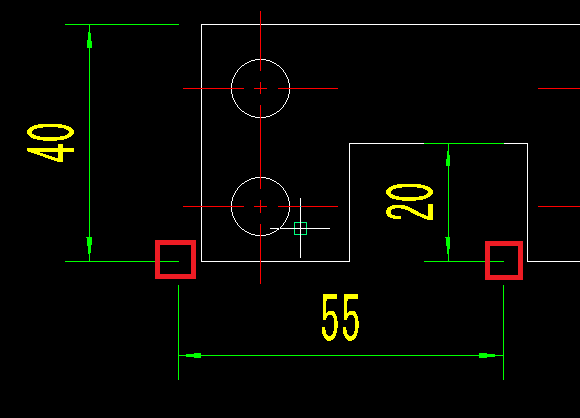

Depending on your dimension style settings, there may be only a small gap between the geometry and the dimension extension lines. This may cause you to accidentally create dimensions between extension lines instead of the intended geometry.
Enable or disable this option according to your dimension style settings and preferences.
Procedure
[1] Click [Snap Settings] in the [Tools] tab.
[2] Select the Current Mode.
[3] Move the [Object Snap] tab and change the optional check.
[4] Click OK.
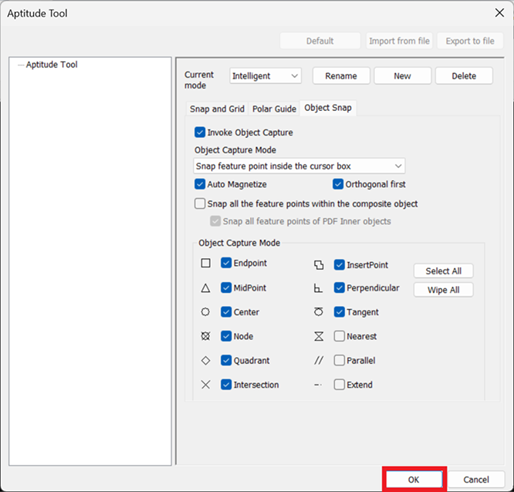

If you want to change it by default, change Menu > Options > Attribute .
Please refer to the video.
CA-061
When snapping Frame, Title Block, and Bill of Material
If you uncheck [Snap to all feature points within a composite object], you will be unable to snap to endpoints when you temporarily move the title block, title bar, or parts list and then try to snap to them again.

When this option is unchecked, you cannot snap to points on frames, title blocks, or BOMs. However, you can still snap to projected geometry and other drawing entities.
Procedure
[1] Select the frame, title block, or BOM you want to move, and then click one blue grip.
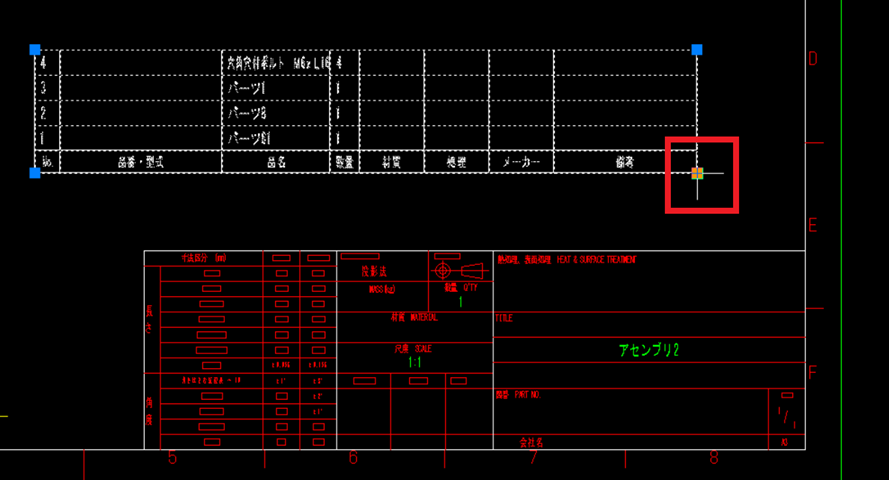
[2] Press the "Space" key to display the object snap selection menu.
Make sure your keyboard input mode is set to half-width alphanumeric characters.
Make sure your keyboard input mode is set to half-width alphanumeric characters.
[3] Select [End point] and move the mouse cursor to the endpoint you want to align with.
An orange square will appear when the endpoint is detected. Left-click to confirm the position.
[4] After moving the object, press Esc to deselect it.