Create camera animation
This section explains how to adjust camera settings in KeyShot.
Procedure
[1] Right-click the camera you want to animate in the camera list, and select [Animation] → [Keyframe] from the submenu.
[2] The [Animation] window appears at the bottom of the screen.
[3] Move the timeline to the desired time.
[4] Adjust the camera position and orientation.
[5] Click [Add keyframe at current time].
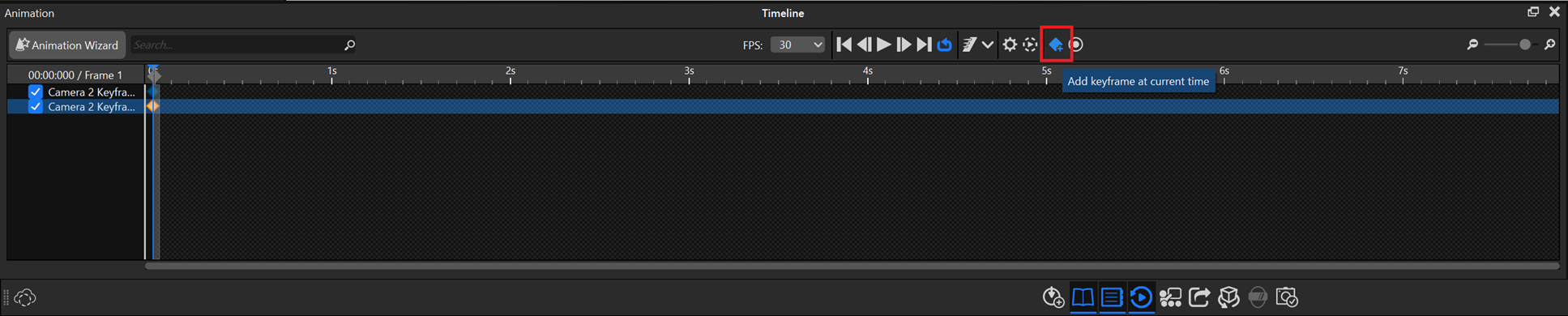

If the command is disabled, the camera may no longer be selected.
Click the camera name in the camera list to select it and enable the command.
[6] A keyframe is added to the animation, recording the updated camera position and orientation.
[7] After creating the necessary keyframes, move the timeline playhead to preview the camera animation.
Please refer to the video below.
Key-003
Key-003