Downloading and Applying Environments from the KeyShot Cloud Library
This section explains how to download environment presets from the KeyShot Cloud Library and apply them to your scene.
Procedure
[1] Click the [Window] tab → [Cloud Library].
[2] The Cloud Library website opens in your web browser.

An internet connection is required to access the Cloud Library.
In the [Filters] section on the left side of the page, select [Environment].
[3] Click the environment you want to download to open its details page.
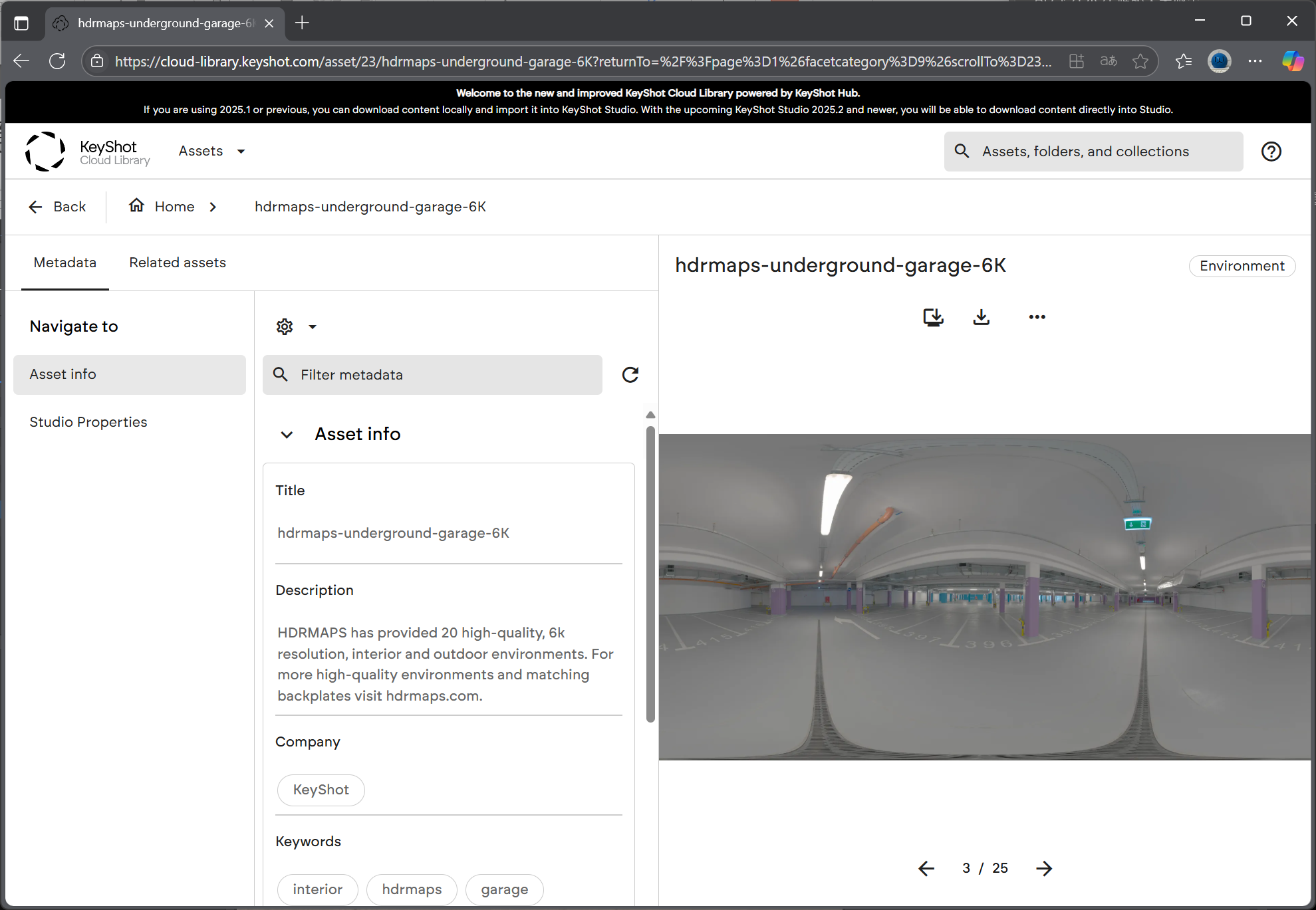
[4] Click "Download".
[4] Click "Download".
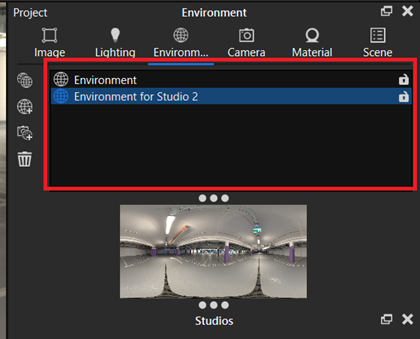
[5] Return to KeyShot and open the [Environment] tab in the Project window.
Click [Environment].
Then, click [Add and Edit].
[6] Click the folder icon and select the downloaded file (*.hdz).
[7] The downloaded environment will be applied to the scene.
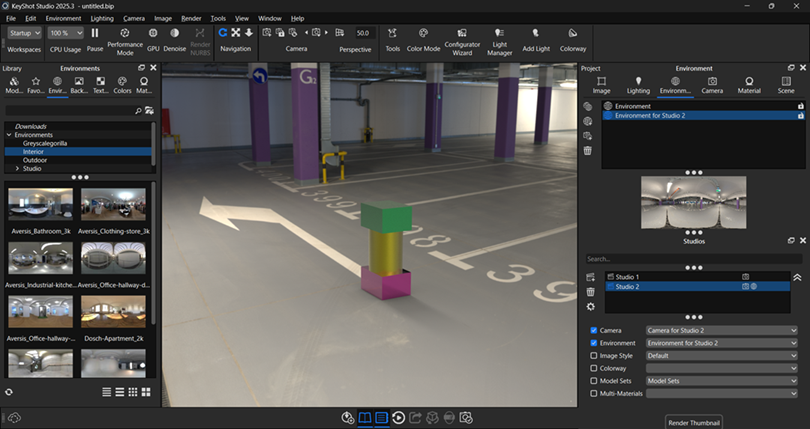
[8] To switch between environments, select the desired environment from the list in the Project window.