Integrate with KeyShot

A separate paid KeyShot for IRONCAD license is required to use KeyShot.
This explains how to transfer models created in IRONCAD to KeyShot for rendering.
Confirmation: License Confirmation
Check the KeyShot license included in your IRONCAD license.
How to Verify License (Standalone) - IRONCAD User Guide
Make sure that KEYSHOT IC (version number) is listed in the License Records field.
Make sure that KEYSHOT IC (version number) is listed in the License Records field.
Response Table
| IRONCAD Version | License Name | KeyShot version | |
Ironcad2026 | Keyshot IC 2026 | → | KeyShot 2026 |
Ironcad2025 | Keyshot IC 2024,2025 | → | KeyShot Studio (Ver 2025.3) |
Ironcad2024 | Keyshot IC 2023, 2024 | → | KeyShot 2023, 2024 |
| Ironcad2023 | Keyshot IC 10, 11, 2023 | → | KeyShot 10, 11, 2023 |
| Ironcad2022 | Key Shot IC 10, 11 | → | KeyShot 10, 11 |
Ironcad2021 | Key Shot IC 9, 10 | → | KeyShot 9, 10 |
Ironcad2020 | Key Shot IC 9 | → | KeyShot 9 |
Ironcad2019 | Key Shot IC 8 | → | KeyShot 8 |

The KeyShot IC version number displayed in the IRONCAD license must match the version of the installed KeyShot product.
If the versions do not match, KeyShot Integration will not work.
If the versions do not match, KeyShot Integration will not work.
Step 1: Launch KeyShot Integration
[1] On the IRONCAD screen, click [Add-in Applications] in the [Add-ins] tab.
[2] Check [KeyShot Integration], then click OK.
Step 2: Transfer the Model to KeyShot
[1] Launch the KeyShot product.
[2] Click [Render in KeyShot].
If the [Render] button is disabled, the installed KeyShot version may not match your license.
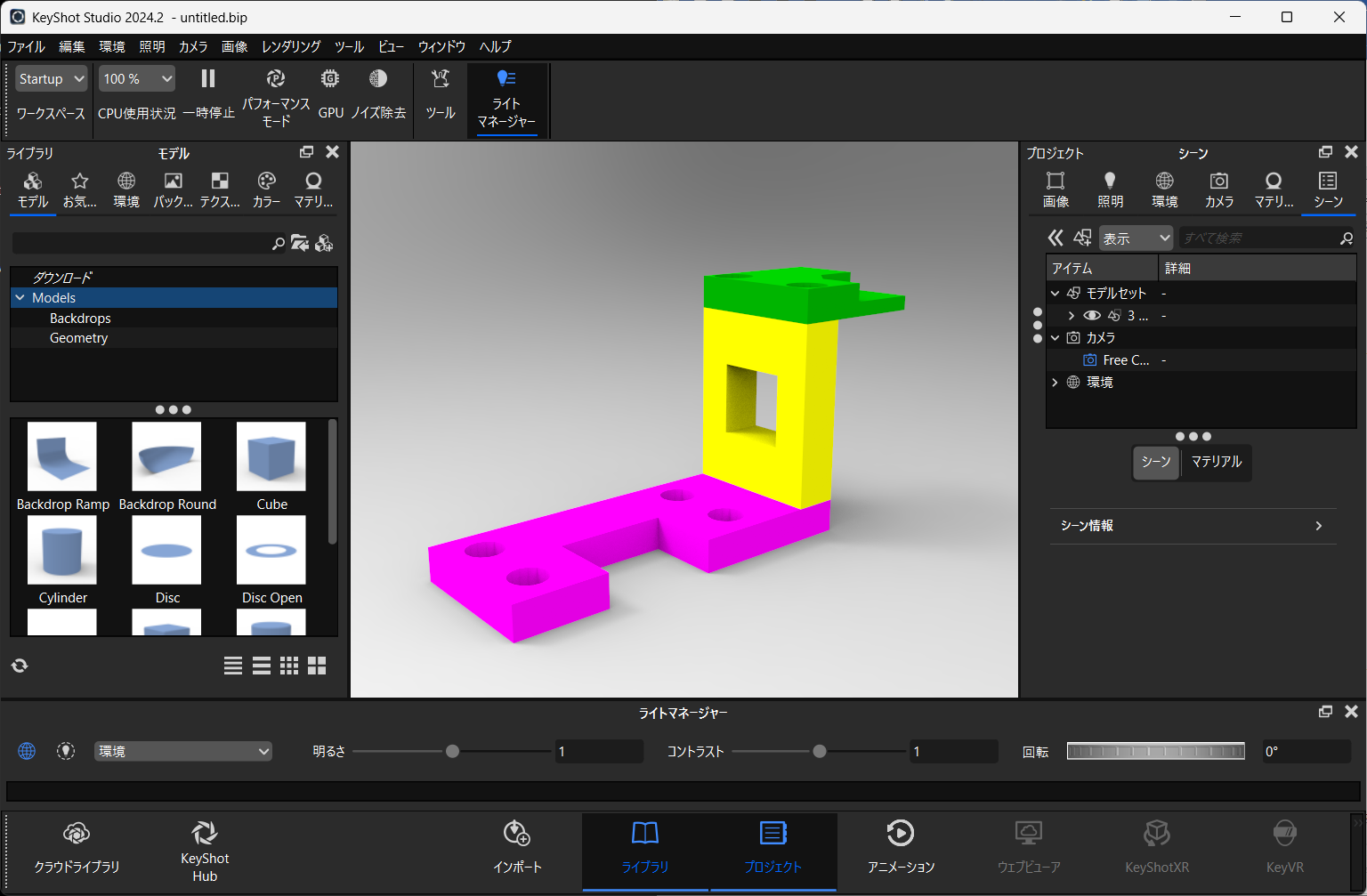
[3] Verify that the model appears in KeyShot.
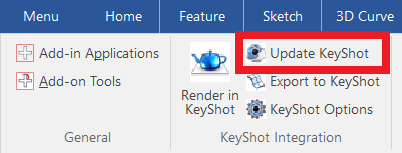
[4] If you modify the model in IRONCAD, click [Update KeyShot] to apply the changes to KeyShot.
Please refer to the video.
Key-001
Key-001