Icons Appear White
After performing any of the following operations, scene files (.ics) or 2D files (.exb) may appear with a white (blank) icon:
- Reinstalling IRONCAD
- Upgrading IRONCAD
- Windows Upgrade
- Apply Windows Updates
Solution:
Change the default program associated with *.ics or *.exb files to IronCAD Design Collaboration Suite.
Procedure:
[1] ARight-click on an *.ics file (or *.exb file) and select [Properties] from the menu.
[2] In the Properties dialog box, click [Change].
[3] If multiple entries of IronCAD Design Collaboration Suite appear in the list, select a different one from the options shown.
[4] If the issue is not resolved, try the following steps:
Click [More apps].
Click [Look for another app on this PC].
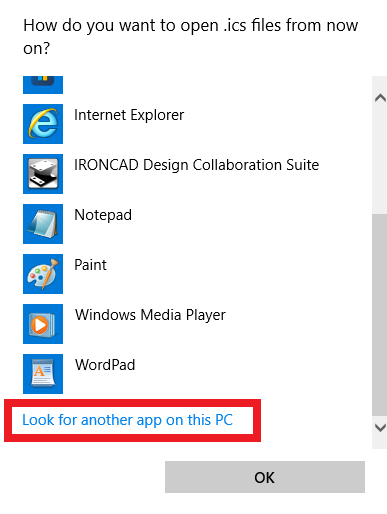
Browse to: C:\Program Files\IronCAD\2024\bin
Select IRONCAD.exe, and then click [Open].
[5] In the Properties dialog box, click [Apply] and then [OK] to finish the settings.
[6] If the issue still persists, reinstalling IRONCAD may correct the file association settings in Windows.
Please follow the uninstallation procedure described in the link below,