How to Register add-in Unlock Key
Due to changes to the specifications of the [icAPI Activation], [icAPI Activation] will be updated from Wednesday, July 9, 2025.
Reference: Upgrade to the new ICAPI Activation
icPiping will change the specifications from the release of the next version.
For the current situation, please register and use the release key in the icAPI Activation.
1. Receive the Unlock Key
IRONCAD Technical Support will receive a 32-digit release key to the email address you entered at the time of application.

If you do not receive the Unlock Key after a few days, please contact by [Tickets] or mail to support.
2. Open [icAPI Activation]
[1] Click t "General" > "Add-in Applications" of "Add-ins" tab of the 3D scene.
[2] Check name of the add-in you want to use and click [OK].
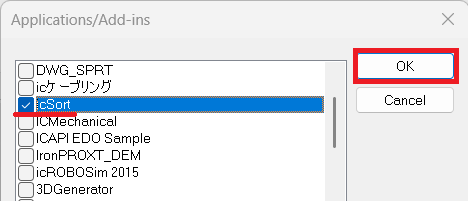
[3] Click [Activation] command.
[4] [icAPI Activatoin] is launched and the dialog shown below is displayed.
[icAPI Activation] Dialogue
If you see the message "This app is launched" when you click Activation, it is already running.
The taskbar is displayed with the icon below.
Click on the icon to display a dialog.
3. Register Unkey
[1] Copy 32 digits of the received Unlock Key and paste it into the [KEY].
[2] Click [Confirm].
[3] [The KEY is matched.] is displayed.

If you see a screen as [The KEY is different.], the Unlock Key expires or the character of the copied Unlock Key may be incorrect.
[4] Click [Register].
[5] When registration is successfully completed, the message in the figure below will be displayed and click [OK] to complete.
The registration is complete.

If the registration is incomplete and the add-in is not available,
Please send an image of the [icAPI Activatoin] dialog to support from the [Tickets] of TechBase.
Reference: IRONCAD TechBase | Tickets
Related Articles
How to check USER ID
Due to changes to the specifications of the ICAPI Activation, the ICAPI Activation will be updated from Wednesday, July 9, 2025. See also:Upgrade to the new ICAPI Activation IC piping will change the specifications from the release of the next ...Opening the IRONCAD Mechanical Catalog
This section explains how to open the IRONCAD Mechanical catalog after installing IRONCAD Mechanical. The process begins with enabling the [ICMechanical] tab. Displaying the [ICMechanical] Tab [1] Click [Add-In Applications] in the [Add-Ins] tab. [2] ...