How to check USER ID
Due to changes to the specifications of the ICAPI Activation, the ICAPI Activation will be updated from Wednesday, July 9, 2025.
See also:Upgrade to the new ICAPI Activation
IC piping will change the specifications from the release of the next version.
For the current situation, please register and use the release key in the iAPI Activation.
1. Open [icAPI Activation]
[1] Click t "General" > "Add-in Applications" of "Add-ins" tab of the 3D scene.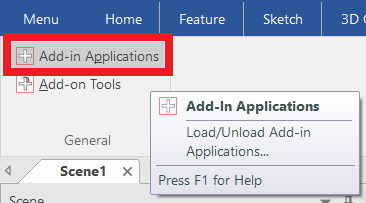
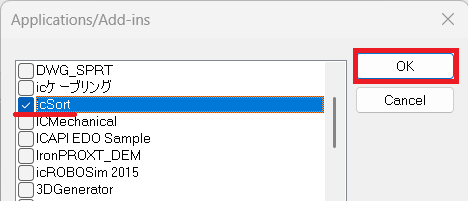
[2] Check name of the add-in you want to use and click [OK].
[3] Click [Activation] command.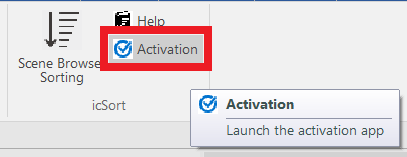
2. Check the USER ID.
[USER ID] is "25-" + It consists of 4 digits x 8 columns of half-width alphanumeric characters.Example)25-xxxx-xxxx-xxxx-xxxx-xxxx-xxxx-xxxx-xxxx
Click [Copy].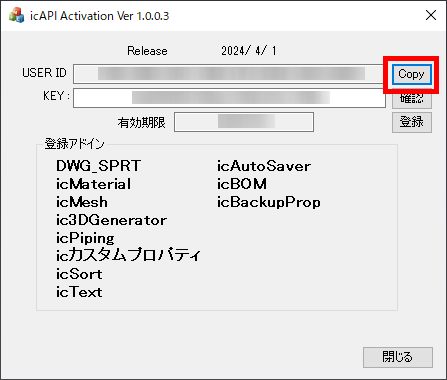
If you can copy it, the message shown below will be displayed.
Click [OK] and the copy is complete.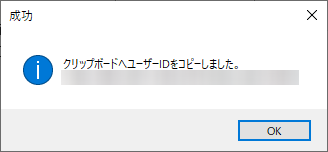
 This USER ID is required to apply for an add-in release key.
 Please note that the USER ID of the traditional ICAPI Activation is different from the USER ID of the new Activation.
This USER ID is required to apply for an add-in release key.
Please note that the USER ID of the traditional ICAPI Activation is different from the USER ID of the new Activation.
Related Articles
How to Check the Version of IRONCAD Mechanical
The section explains how to confirm the version of IRONCAD Mechanical installed on your system. You can check the version either with IRONCAD closed or with IRONCAD open. Checking with IRONCAD Closed [1] Open [IPROSettings] in the IronCAD Mechanical ...How to Register add-in Unlock Key
Due to changes to the specifications of the [icAPI Activation], [icAPI Activation] will be updated from Wednesday, July 9, 2025. Reference: Upgrade to the new ICAPI Activation icPiping will change the specifications from the release of the next ...How to Share IRONCAD Mechanical Settings
This section explains how to share IRONCAD Mechanical settings. By sharing the respective configuration files, you can transfer settings to another PC. Standard Settings Files The standard settings files are saved in the following folder: ...