Edit cross-sectional view hatching of data linked to 3D
This section explains how to edit the hatchings in a Section View that has been projected from 3D data in CAXA DRAFT.
Procedure:
[1] Go to the [3D Interface] tab, then click [Edit Hatch].
[2] Select the hatching you want to edit.
If there are multiple hatchings, you can select them one after another (no key operation is required).
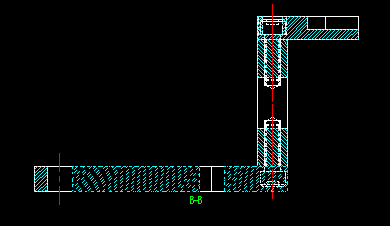
[3] Once selection is complete, right-click to confirm.
[4] The [Hatching Pattern] dialog box will appear. Change the settings as desired.
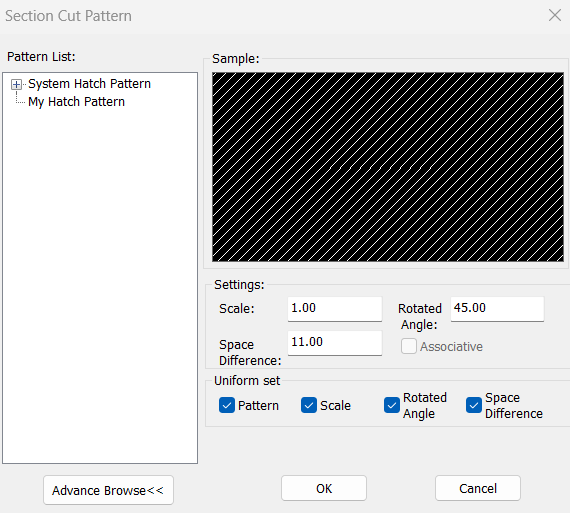
[5] Click [OK]
Please refer to the video below.
CA-019
Related Articles
Create Hatching in a Projected View
This section explains how to create manual Hatching in a projected view that is linked to a 3D drawing, independent of Section View. Procedure: [1] Right-click on the projected view and select [View Edit] or [View Edit In-place] to enter the ...
Manually change the symbol of the cross-sectional label
In CAXA Draft, you can create section views from projection views linked to 3D models. When a section view is created, a "label" is automatically assigned. By default, the label uses alphabetical letters in sequence (A, B, C, ...). However, if a ...
Edit Section Hatching
This section explains how to edit hatchings after projecting a drawing and creating a section view in CAXA Draft. Procedure: [1] Go to the [3D Interface] tab, then click [Edit Hatch]. [2] The Hatching lines of Section views. ※ Lines are possible to ...
Edit Hatching
This section explains how to edit hatch patterns created in CAXA Draft. Procedure: [1] Go to the [Drawing] tab and click [Hatch Edit]. [2] Modify the following properties: Pattern List: Select any pattern Settings: Set Scale and angle Border; Add or ...
Edit the Link Destination of a Projected View
This guide explains how to change the link between a projected view in CAXA Draft and 3D file. Purpose: Use this procedure when reusing 3D models and drawings created in CAXA Draft. When reusing 3D files (.ics) created in IRONCAD, we recommend using ...